> ## Documentation Index
> Fetch the complete documentation index at: https://sdk.cerebras.ai/llms.txt
> Use this file to discover all available pages before exploring further.
# Installation and Setup
> Install the Cerebras SDK Singularity container and configure your environment to compile and run CSL programs on the fabric simulator or a legacy Cerebras system installation.
If you're using a Cerebras Wafer-Scale Cluster running in appliance mode, see [Running SDK on a Wafer-Scale Cluster](/appliance-mode).
## Request Access
Request access to the Cerebras SDK Singularity container at [cerebras.ai/developers/sdk-request](https://www.cerebras.ai/developers/sdk-request). You can also find a repository of example programs [on GitHub](https://github.com/Cerebras/sdk-examples).
Your download includes a tarball (`Cerebras-SDK-2.10.0-{build_id}.tar.gz`) containing the SDK software and a `sha256sum.txt` file for verifying the download integrity.
## Prerequisites
Before you begin, make sure your system has the following:
* **Apptainer or SingularityCE** — A container platform capable of running Singularity containers. See the [Apptainer Quick Start](https://apptainer.org/docs/user/main/quick_start.html) or [SingularityCE Quick Start](https://docs.sylabs.io/guides/latest/user-guide/quick_start.html) for setup instructions.
* **Overlay filesystem** — Available by default on Linux kernel 3.18 and later. See the [kernel documentation](https://www.kernel.org/doc/html/latest/filesystems/overlayfs.html) for details.
* **Bash** — The [Bash shell](https://www.gnu.org/software/bash/) must be available on your system.
## Install the SDK
If you're on an Apple Silicon Mac, see [Apple Silicon Mac installation](#apple-silicon-mac-installation) instead.
In the directory where you downloaded the tarball, run the checksum verification:
```bash theme={"languages":{"custom":["/languages/csl-tmlanguage.json"]}}
cd /my/install/location
sha256sum --check sha256sum.txt
```
If the output shows `OK`, the file is intact.
Set environment variables for your install location and tarball path. Both should be absolute paths:
```bash theme={"languages":{"custom":["/languages/csl-tmlanguage.json"]}}
SDK_INSTALL_LOCATION=/my/install/location
SDK_INSTALL_PATH=$SDK_INSTALL_LOCATION/cs_sdk
SDK_TAR_PATH=/path/to/Cerebras-SDK-2.10.0-{build_id}.tar.gz
```
Create the install directory and extract the tarball:
```bash theme={"languages":{"custom":["/languages/csl-tmlanguage.json"]}}
mkdir -p $SDK_INSTALL_PATH
tar -C $SDK_INSTALL_PATH -xvf $SDK_TAR_PATH
```
After extraction, your `$SDK_INSTALL_PATH` directory should contain:
| File | Description |
| ------------------------------ | ----------------------------------------------------------------------------------------------- |
| `sdk-cbcore-{build_id}.sif` | The SDK container image (\~3 GB) |
| `cslc` | CSL compiler script |
| `cs_python` | Script for running Python code within the container's Python environment |
| `csdb` | Hardware debug tools script |
| `cs_readelf` | Cerebras alternative to `readelf` |
| `sdk_debug_shell` | Simulation debug tools, including the smoke test and SDK GUI |
| `csl-extras-{build_id}.tar.gz` | Example programs, tutorials, and extras (including CSL syntax highlighters for Vim and VS Code) |
| `cerebras-software-eula.pdf` | End User License Agreement |
| `sdk-gui-LICENSE.txt` | License for the GUI tool |
Add the SDK to your current session and persist it across future sessions:
```bash theme={"languages":{"custom":["/languages/csl-tmlanguage.json"]}}
export PATH=$SDK_INSTALL_PATH:$PATH
echo 'export PATH='$SDK_INSTALL_PATH':$PATH' >> ~/.bashrc
```
Extract the examples and run the smoke test to verify that everything compiles and runs correctly:
```bash theme={"languages":{"custom":["/languages/csl-tmlanguage.json"]}}
cd $SDK_INSTALL_PATH
tar -xzvf csl-extras-{build_id}.tar.gz
sdk_debug_shell smoke csl-extras-{build_id}
```
A successful test ends with:
```text theme={"languages":{"custom":["/languages/csl-tmlanguage.json"]}}
SUCCESS!
PASSED
SMOKE CHECK COMPLETED SUCCESSFULLY
```
To speed up the smoke test and reduce disk usage, set `SINGULARITYENV_CSL_SUPPRESS_SIMFAB_TRACE=1` before running it. This skips generating `simfab_traces` used by the SDK GUI. Unset this variable before running examples you plan to visualize in the GUI.
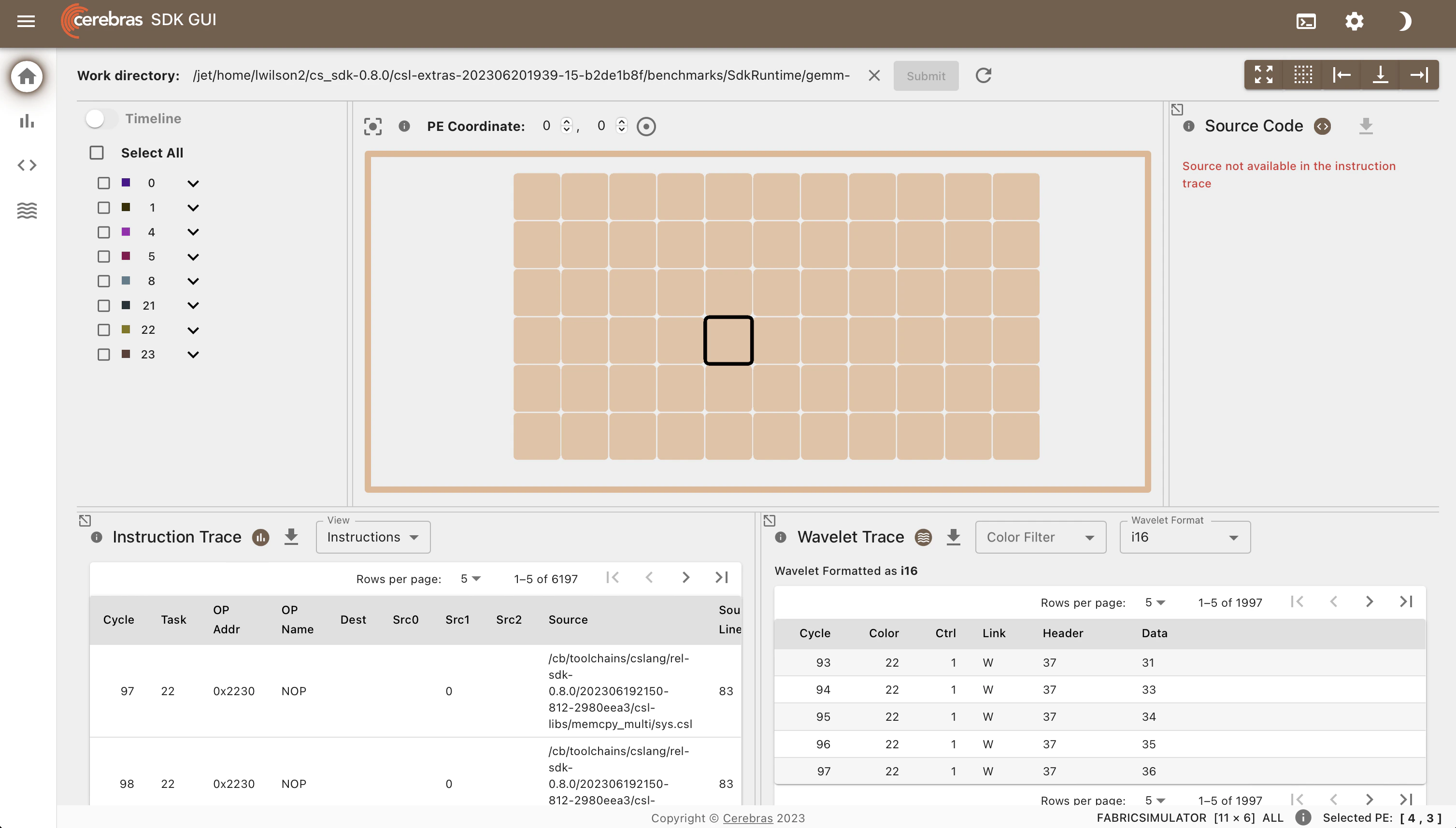
To confirm the GUI works, run the `gemm-collectives_2d` example:
```bash theme={"languages":{"custom":["/languages/csl-tmlanguage.json"]}}
cd $SDK_INSTALL_PATH/csl-extras-{build_id}/csl_examples/benchmarks/gemm_collectives_2d
./commands.sh
```
Then launch the GUI:
```bash theme={"languages":{"custom":["/languages/csl-tmlanguage.json"]}}
sdk_debug_shell visualize
```
This outputs one or more URLs. Open one in your browser to view the GUI:
```text theme={"languages":{"custom":["/languages/csl-tmlanguage.json"]}}
Click this link to open URL: http://:8000/sdk-gui?session_id=...
```
After selecting a PE, you should see a visualization like this:
 ## Apple Silicon Mac installation
On Apple Silicon Macs, the SDK runs inside a Linux virtual machine powered by [Lima](https://lima-vm.io/). You can use either Rosetta (recommended for performance) or QEMU for x86 emulation. Choose your approach below, then continue with the shared setup steps.
Tested with Lima >= 2.0.0 and macOS >= 26.2. See the [Lima documentation](https://lima-vm.io/docs/config/multi-arch/#fast-mode-2) for details.
```bash theme={"languages":{"custom":["/languages/csl-tmlanguage.json"]}}
brew install lima
```
Save the following as `config.yml`. This creates an ARM virtual machine with Apptainer installed, using Rosetta to run the x86\_64 SDK container. Your Mac's home directory and `/tmp/lima` are mounted as writable:
```yaml theme={"languages":{"custom":["/languages/csl-tmlanguage.json"]}}
minimumLimaVersion: 2.0.0
containerd:
system: false
user: false
provision:
- mode: system
script: |
#!/bin/bash
set -eux -o pipefail
command -v apptainer >/dev/null 2>&1 && exit 0
# Workaround for https://github.com/apptainer/apptainer/issues/2027
echo "kernel.apparmor_restrict_unprivileged_userns = 0" >/etc/sysctl.d/99-userns.conf
sysctl --system
# add the "Official PPA for Apptainer"
add-apt-repository -y ppa:apptainer/ppa
apt-get update
apt-get install -y apptainer
probes:
- script: |
#!/bin/bash
set -eux -o pipefail
if ! timeout 30s bash -c "until command -v apptainer >/dev/null 2>&1; do sleep 3; done"; then
echo >&2 "apptainer is not installed yet"
exit 1
fi
hint: See "/var/log/cloud-init-output.log" in the guest
images:
- location: "https://cloud-images.ubuntu.com/releases/noble/release-20251213/ubuntu-24.04-server-cloudimg-arm64.img"
arch: "aarch64"
digest: "sha256:a40713938d74aaec811f74cb1fa8bfcb535d22e26b2a0ca1cc90ad9db898feb9"
- location: https://cloud-images.ubuntu.com/releases/noble/release/ubuntu-24.04-server-cloudimg-arm64.img
arch: aarch64
mounts:
- location: "~"
writable: true
- location: "/tmp/lima"
writable: true
mountType: "virtiofs"
vmOpts:
vz:
rosetta:
enabled: true
binfmt: true
```
QEMU x86 emulation is noticeably slower than Rosetta, and emulation bugs are possible. Use Rosetta if your system supports it.
```bash theme={"languages":{"custom":["/languages/csl-tmlanguage.json"]}}
brew install lima qemu
```
Save the following as `config.yml`. This creates an x86\_64 virtual machine with SingularityCE installed. Your Mac's home directory and `/tmp/lima` are mounted as writable:
```yaml theme={"languages":{"custom":["/languages/csl-tmlanguage.json"]}}
vmType: "qemu"
images:
- location: "https://cloud-images.ubuntu.com/releases/22.04/release-20231130/ubuntu-22.04-server-cloudimg-amd64.img"
arch: "x86_64"
digest: "sha256:7edc2eccf1e34df23d9561b721b6fed381c3b6e8c916c91c71bbce7b8488b496"
arch: "x86_64"
cpuType:
x86_64: "max"
ssh:
loadDotSSHPubKeys: false
mounts:
- location: "~"
writable: true
- location: "/tmp/lima"
writable: true
containerd:
system: false
user: false
provision:
- mode: system
script: |
#!/bin/bash
set -eux -o pipefail
export DEBIAN_FRONTEND=noninteractive
apt-get update -y && apt install -y squashfs-tools-ng
wget https://github.com/sylabs/singularity/releases/download/v4.0.2/singularity-ce_4.0.2-jammy_amd64.deb
apt install -y ./singularity-ce_4.0.2-jammy_amd64.deb
probes:
- script: |
#!/bin/bash
set -eux -o pipefail
if ! timeout 30s bash -c "until command -v singularity >/dev/null 2>&1; do sleep 3; done"; then
echo >&2 "singularity is not installed yet"
exit 1
fi
hint: See "/var/log/cloud-init-output.log" in the guest
```
### Create the VM and Run the SDK
After completing either option above:
```bash theme={"languages":{"custom":["/languages/csl-tmlanguage.json"]}}
limactl start ./config.yml --name cs_sdk
```
Extract the SDK tarball somewhere under your Mac's home directory, then start a shell in the VM:
```bash theme={"languages":{"custom":["/languages/csl-tmlanguage.json"]}}
# Start a shell inside the VM
limactl shell cs_sdk
# Add the SDK to your PATH (use the absolute Mac path — the home directory
# inside the VM is different from your Mac's home directory)
export PATH=/Users/your-username/path/to/sdk:$PATH
```
From here, you can run SDK examples within the VM. Lima automatically forwards ports, so if you launch the SDK GUI inside the VM, you can access it in your Mac's browser at `127.0.0.1:8000/sdk-gui`.
## Using Additional Python Packages
The `cs_python` script runs host code from the Python environment inside the container. To add packages to this environment, save the following helper script as `sdk_install_python_package.sh`:
```bash theme={"languages":{"custom":["/languages/csl-tmlanguage.json"]}}
#!/bin/bash
py_path=$(realpath $1)
package_name=$2
SINGULARITYENV_PYTHONPATH="$(realpath $py_path)"
cs_python -c "
import subprocess
import sys
package='$2'
subprocess.check_call([sys.executable, '-m', 'pip', 'install', '--target=$py_path', package])
"
echo -e "Please do\nexport SINGULARITYENV_PYTHONPATH=\"$SINGULARITYENV_PYTHONPATH\"\nbefore using cs_python"
```
Then install a package into a local directory:
```bash theme={"languages":{"custom":["/languages/csl-tmlanguage.json"]}}
mkdir MY_LOCAL_PY_PATH
bash /path/to/sdk_install_python_package.sh ./MY_LOCAL_PY_PATH
```
Before running `cs_python`, set the environment variable so it can find your installed packages:
```bash theme={"languages":{"custom":["/languages/csl-tmlanguage.json"]}}
export SINGULARITYENV_PYTHONPATH=$(realpath $MY_LOCAL_PY_PATH)
```
## Apple Silicon Mac installation
On Apple Silicon Macs, the SDK runs inside a Linux virtual machine powered by [Lima](https://lima-vm.io/). You can use either Rosetta (recommended for performance) or QEMU for x86 emulation. Choose your approach below, then continue with the shared setup steps.
Tested with Lima >= 2.0.0 and macOS >= 26.2. See the [Lima documentation](https://lima-vm.io/docs/config/multi-arch/#fast-mode-2) for details.
```bash theme={"languages":{"custom":["/languages/csl-tmlanguage.json"]}}
brew install lima
```
Save the following as `config.yml`. This creates an ARM virtual machine with Apptainer installed, using Rosetta to run the x86\_64 SDK container. Your Mac's home directory and `/tmp/lima` are mounted as writable:
```yaml theme={"languages":{"custom":["/languages/csl-tmlanguage.json"]}}
minimumLimaVersion: 2.0.0
containerd:
system: false
user: false
provision:
- mode: system
script: |
#!/bin/bash
set -eux -o pipefail
command -v apptainer >/dev/null 2>&1 && exit 0
# Workaround for https://github.com/apptainer/apptainer/issues/2027
echo "kernel.apparmor_restrict_unprivileged_userns = 0" >/etc/sysctl.d/99-userns.conf
sysctl --system
# add the "Official PPA for Apptainer"
add-apt-repository -y ppa:apptainer/ppa
apt-get update
apt-get install -y apptainer
probes:
- script: |
#!/bin/bash
set -eux -o pipefail
if ! timeout 30s bash -c "until command -v apptainer >/dev/null 2>&1; do sleep 3; done"; then
echo >&2 "apptainer is not installed yet"
exit 1
fi
hint: See "/var/log/cloud-init-output.log" in the guest
images:
- location: "https://cloud-images.ubuntu.com/releases/noble/release-20251213/ubuntu-24.04-server-cloudimg-arm64.img"
arch: "aarch64"
digest: "sha256:a40713938d74aaec811f74cb1fa8bfcb535d22e26b2a0ca1cc90ad9db898feb9"
- location: https://cloud-images.ubuntu.com/releases/noble/release/ubuntu-24.04-server-cloudimg-arm64.img
arch: aarch64
mounts:
- location: "~"
writable: true
- location: "/tmp/lima"
writable: true
mountType: "virtiofs"
vmOpts:
vz:
rosetta:
enabled: true
binfmt: true
```
QEMU x86 emulation is noticeably slower than Rosetta, and emulation bugs are possible. Use Rosetta if your system supports it.
```bash theme={"languages":{"custom":["/languages/csl-tmlanguage.json"]}}
brew install lima qemu
```
Save the following as `config.yml`. This creates an x86\_64 virtual machine with SingularityCE installed. Your Mac's home directory and `/tmp/lima` are mounted as writable:
```yaml theme={"languages":{"custom":["/languages/csl-tmlanguage.json"]}}
vmType: "qemu"
images:
- location: "https://cloud-images.ubuntu.com/releases/22.04/release-20231130/ubuntu-22.04-server-cloudimg-amd64.img"
arch: "x86_64"
digest: "sha256:7edc2eccf1e34df23d9561b721b6fed381c3b6e8c916c91c71bbce7b8488b496"
arch: "x86_64"
cpuType:
x86_64: "max"
ssh:
loadDotSSHPubKeys: false
mounts:
- location: "~"
writable: true
- location: "/tmp/lima"
writable: true
containerd:
system: false
user: false
provision:
- mode: system
script: |
#!/bin/bash
set -eux -o pipefail
export DEBIAN_FRONTEND=noninteractive
apt-get update -y && apt install -y squashfs-tools-ng
wget https://github.com/sylabs/singularity/releases/download/v4.0.2/singularity-ce_4.0.2-jammy_amd64.deb
apt install -y ./singularity-ce_4.0.2-jammy_amd64.deb
probes:
- script: |
#!/bin/bash
set -eux -o pipefail
if ! timeout 30s bash -c "until command -v singularity >/dev/null 2>&1; do sleep 3; done"; then
echo >&2 "singularity is not installed yet"
exit 1
fi
hint: See "/var/log/cloud-init-output.log" in the guest
```
### Create the VM and Run the SDK
After completing either option above:
```bash theme={"languages":{"custom":["/languages/csl-tmlanguage.json"]}}
limactl start ./config.yml --name cs_sdk
```
Extract the SDK tarball somewhere under your Mac's home directory, then start a shell in the VM:
```bash theme={"languages":{"custom":["/languages/csl-tmlanguage.json"]}}
# Start a shell inside the VM
limactl shell cs_sdk
# Add the SDK to your PATH (use the absolute Mac path — the home directory
# inside the VM is different from your Mac's home directory)
export PATH=/Users/your-username/path/to/sdk:$PATH
```
From here, you can run SDK examples within the VM. Lima automatically forwards ports, so if you launch the SDK GUI inside the VM, you can access it in your Mac's browser at `127.0.0.1:8000/sdk-gui`.
## Using Additional Python Packages
The `cs_python` script runs host code from the Python environment inside the container. To add packages to this environment, save the following helper script as `sdk_install_python_package.sh`:
```bash theme={"languages":{"custom":["/languages/csl-tmlanguage.json"]}}
#!/bin/bash
py_path=$(realpath $1)
package_name=$2
SINGULARITYENV_PYTHONPATH="$(realpath $py_path)"
cs_python -c "
import subprocess
import sys
package='$2'
subprocess.check_call([sys.executable, '-m', 'pip', 'install', '--target=$py_path', package])
"
echo -e "Please do\nexport SINGULARITYENV_PYTHONPATH=\"$SINGULARITYENV_PYTHONPATH\"\nbefore using cs_python"
```
Then install a package into a local directory:
```bash theme={"languages":{"custom":["/languages/csl-tmlanguage.json"]}}
mkdir MY_LOCAL_PY_PATH
bash /path/to/sdk_install_python_package.sh ./MY_LOCAL_PY_PATH
```
Before running `cs_python`, set the environment variable so it can find your installed packages:
```bash theme={"languages":{"custom":["/languages/csl-tmlanguage.json"]}}
export SINGULARITYENV_PYTHONPATH=$(realpath $MY_LOCAL_PY_PATH)
```